Dashboard tour
The dashboard is the main way operators work with SPOT. This page walks through what each section is for, what an operator typically looks at, and how to find a specific analysis or email when something needs investigating.
Logging in
The first screen is a login form. The administrator who installed SPOT created the first account; once logged in, the operator can create more accounts from the Users page (admin only). Every operator has one of three roles:
- Viewer ; can browse analyses, emails, workflows, and the knowledge store, but cannot change anything.
- Analyst ; can submit analyses, manage workflows, and act on results.
- Admin ; additionally manages users, plugins, and platform configuration.
The home dashboard
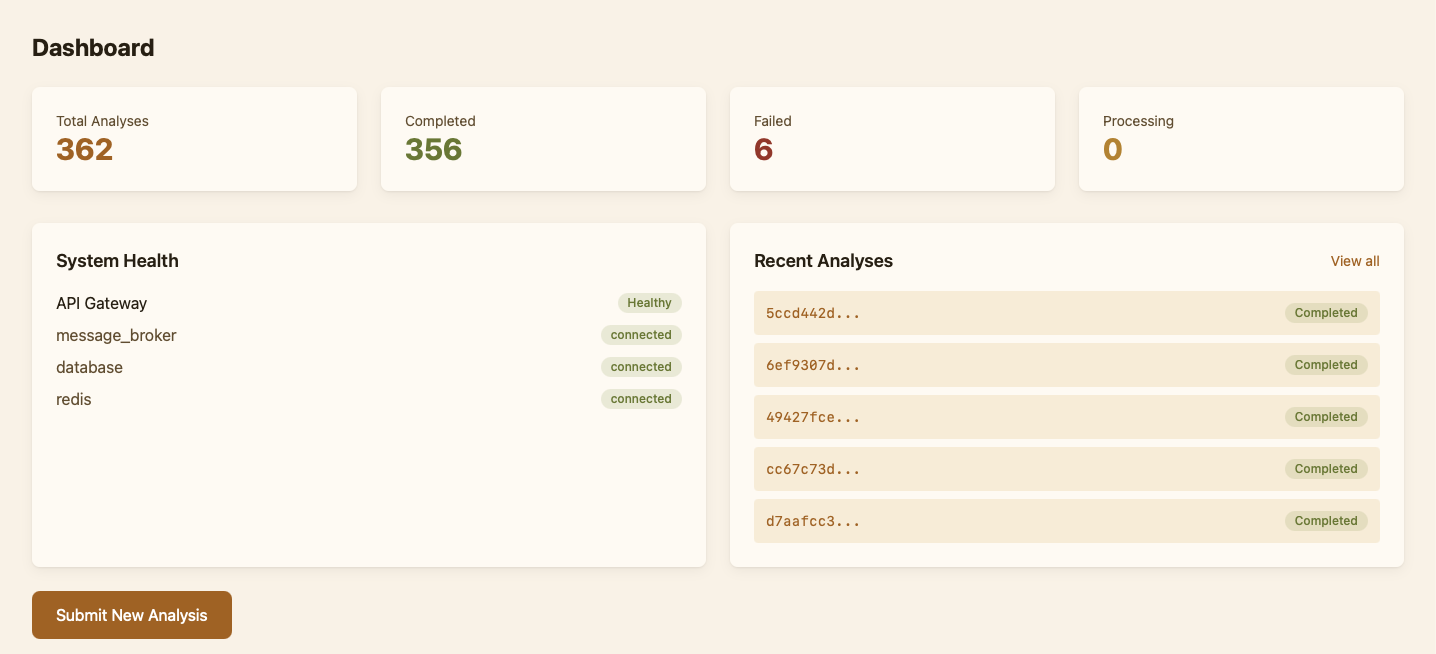
The home page is a summary: how many analyses ran, how many were malicious or suspicious, the verdict mix, the latest malicious and suspicious emails, and the platform's state (the API gateway, the message broker, the database and the cache). It is meant for a quick check at the start of a shift — "is anything broken, is anything unusual?" ; rather than detailed work.
Working with analyses
The Analysis page is where operators spend most of their time. It lists every classification SPOT has produced, newest first, with the email's subject, the verdict and its score, what decided it, and the workflow that produced it. Filters narrow the list to a status, a verdict, or a specific workflow.
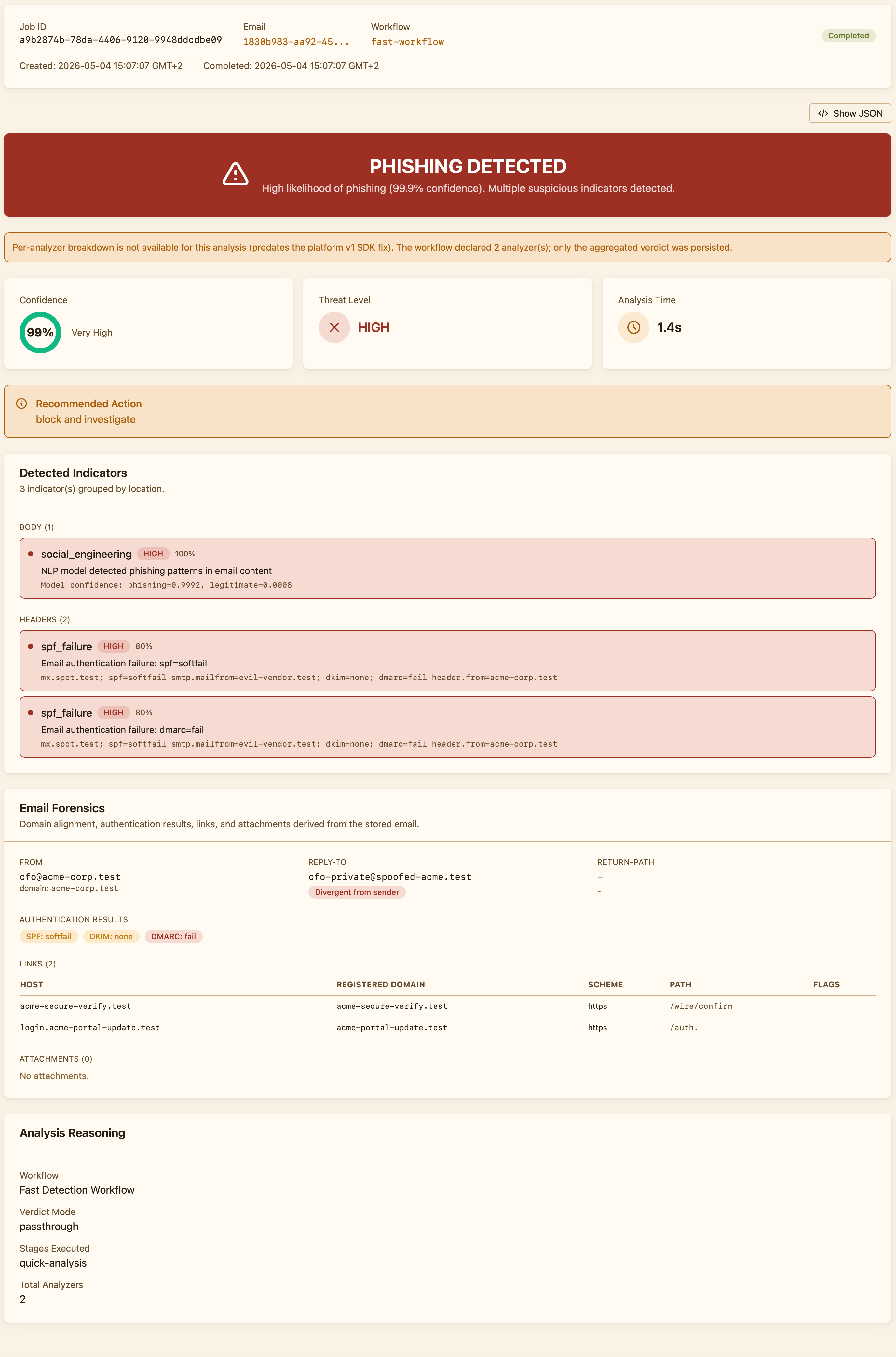
Opening an analysis gives the full picture: the verdict, its score and what decided it at the top, with the route that chose its workflow, its mode (observe or enforce) and what was done with the email, or would have been in observe, then what each analyzer answered, stage by stage, and the signals behind the verdict, each marked in the original email (decrypted on the fly). When an analyzer timed out or errored, the dashboard surfaces that explicitly so the operator can tell the difference between "unsure" and "did not actually run". The email and the evidence are for analysts and admins; a viewer sees the verdict and the signals' names and weights.
Operators can analyse an email again, with any workflow, without submitting it again: Analyze on the email's page, or Retry and Use another workflow on an analysis that failed. SPOT analyses the same stored email, and the new analysis is listed on the email's page beside the others. This is useful when investigating a missed detection ("would the strict workflow have caught this?") or calibrating a new policy.
Browsing emails
The Emails page lists every email SPOT has stored, regardless of how it arrived. For analysts and admins, each row opens the email's page, which lists the analyses produced for it ; usually one, but more if the message has been analysed again. A viewer sees the list only. Emails are stored encrypted; the dashboard decrypts them on demand and only when an authorised operator opens them.
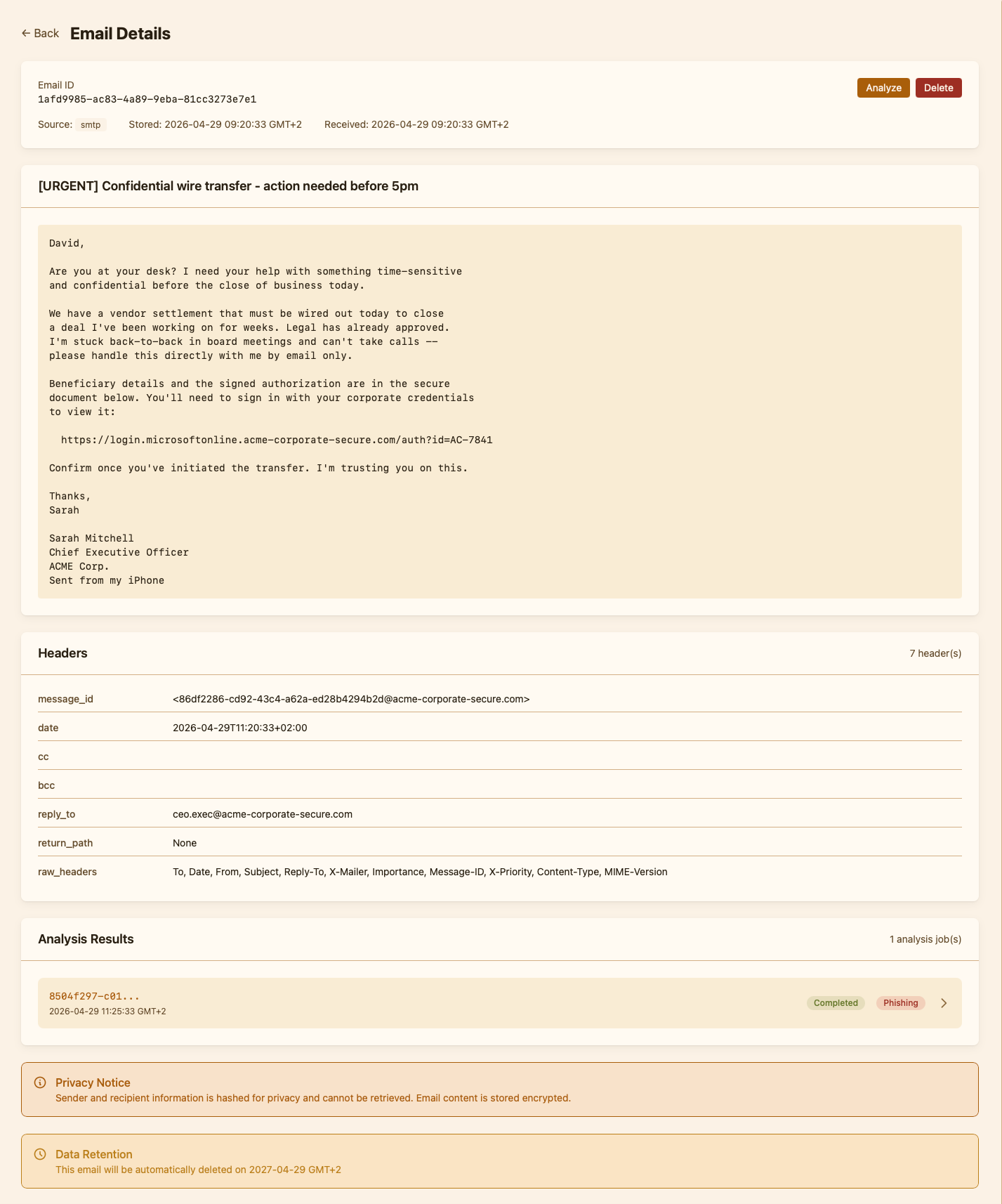
The email page shows the message as SPOT parsed it: its headers in order, its MIME parts with their hashes, the URLs with the host a browser would reach and the text a link shows, and the authentication results of the MTAs SPOT trusts. Analysts and admins download the message as received (.eml) from it. This is the page operators reach for during incident response when they need facts the analysis summary does not show. A viewer sees the list of emails, not their content.
Submitting an email manually
There is a Submit form for ad-hoc analysis. Operators fill in the subject, the sender, the recipients and the body, pick a workflow, and the dashboard sends SPOT the RFC 5322 message they make, analysed as if it had arrived through a retriever. The Email generator builds test messages from a template or with AI; its message can be edited as text before it is submitted. The result lands in the Analysis list immediately; the email is stored alongside the others. This is how operators test workflows on real-world samples and how they re-classify a forwarded report.
Workflows, routing, plugins, knowledge
These four pages are where operators configure SPOT rather than work in it.
- Workflows shows the policies in this deployment, the default one, each workflow's stages, verdict policy and responders, and the editor for duplicating or adjusting them. A workflow's History lists its versions; an admin restores one.
- Routing shows which workflow each email runs: the routes in order, matching on the email's source, its recipients' groups or its sender's domain, the recipient groups, and the workflows run in the shadow. Analysts read it; admins edit it and save it whole.
- Plugins (admins) shows what is installed, what is available in the catalog, and where each plugin came from: its kind, its contract and what it sends outside SPOT (its egress class). A plugin's page restarts it and sets its memory and CPU limits; a mail retriever's page shows its mode and the routes that name it, and switches it between observe and enforce. An install form offers every version the plugin's source lists; its default, the newest that runs, is the one SPOT chooses at install, and a refused install shows the version picked again. An installed plugin's page updates it, installs Another version from the list, and, after an update, offers Roll back to the version the update replaced. A version SPOT refuses, such as one that does not run on this SPOT, is shown with the gateway's reason. See Versions. A plugin of the signed index shows its tier (official, verified or community) on its catalog card; its page shows the tier, its publisher, the digest its image is pinned by, and, for a verified or community plugin, the fingerprint of its publisher's key. Sources adds a Plugin index by its URL alone, and an index's page shows the serial and date of the index its last scan read. See The signed plugin index. The page shows the README of a plugin whose repository SPOT knows (one of a forge source or of the index), at the version installed, else the catalog's. The text is rendered with HTML off and its images as links, under the dashboard's CSP unchanged: nothing in it runs. Past 10,000 table cells a table shows as text, and a link to a URL over 512 characters as its text. A README over 32 KiB, or whose HTML is over 1 MiB, shows as a line saying it is too long to show here, with its link on the forge. The page has no README panel at all when the repository has no
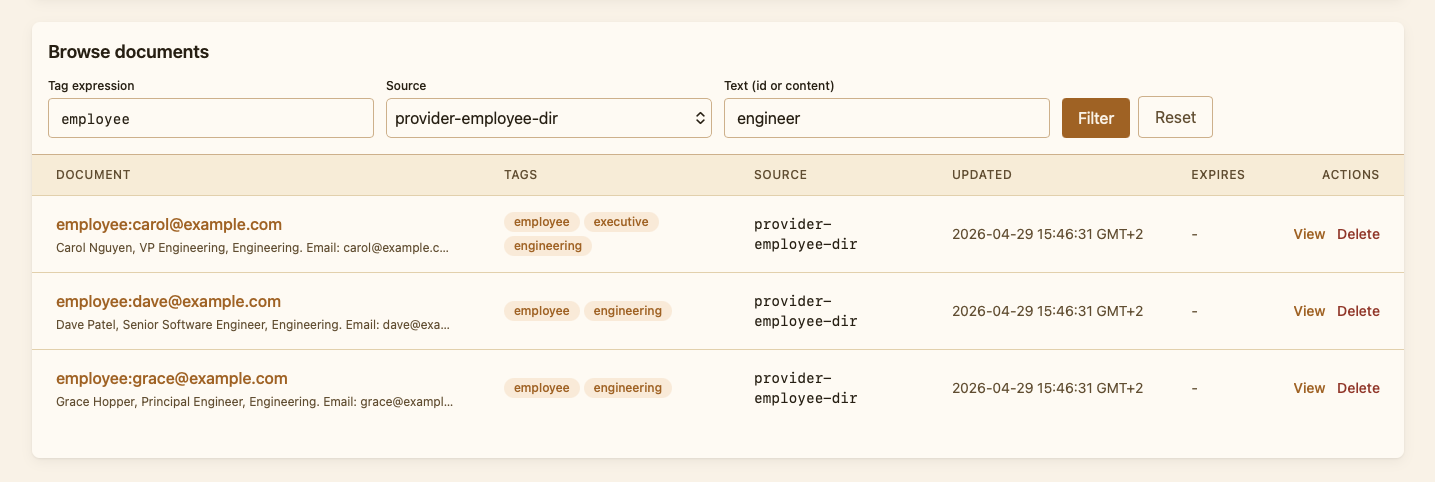
README.mdat the version's tag, or when it is over 256 KiB or not in UTF-8; when the forge cannot be read, the panel says the README could not be loaded. See The README for where SPOT reads it. - Knowledge shows the consolidated store of organisational facts that context providers have deposited; operators can search it by tag and run the same kind of semantic query an analyzer would.
Labels, sender lists and datasets
Analysts and admins correct a verdict from the Label panel of an analysis: a class and a note, the sender's domain on the block or allow list, and the email's promotion into a dataset (Correcting a verdict). The email's page lists the copies made from it, and a copy links back to its dataset. A copy's own page relabels it and removes it from its dataset; it offers no Analyze and no Delete.
- Sender lists (analysts and admins) shows the block and allow lists, adds a domain and removes one. Each change is a commit of
spot.yaml's history by the analyst. The allow list needsmail.trusted_authserv_ids. - Datasets (under Evaluate; analysts and admins) lists the datasets with their counts, creates one, and shows its copies with the subject and sender of each; analysts remove a copy or delete the dataset. Viewers read the datasets through the API only (
GET /api/v1/datasets). The copies are kept until removed, whatever the retention.
Benchmarks
The Benchmarks page lists the runs spot-cli benchmark run has recorded and the backtests the platform has run (Stored runs), newest first, filtered by workflow: the workflow and its version, the run's status, the emails recorded of its total, recall, false-positive rate and who ran it. Viewers read it, as a run holds no email's content.
A run's page shows:
- Run: the workflow and its version, the status, when it started and finished, and a failure's reason.
- What ran: SPOT's version, the commit of
spot.yaml's history in force (an admin follows it to the change), and each analyzer's version and image. - Emails: which emails the run took. For a
spot-clirun, each dataset file with the SHA-256 of itsemails.jsonl, the label filter, the shuffle and its seed, and the cap. For a backtest, its dataset, by name and id (an analyst opens it), or its stored mail: the period it was received in, the sources, whether only labelled emails, and the cap; and the SHA-256 of the emails it took and their labels. - Metrics: overall and per dataset, with the confusion matrix, the median and 95th percentile of the times, and each rate's 95 % interval. They are counted when the run ends. A run whose emails ran with several versions of the workflow says so, as its numbers mix them. A backtest over stored mail adds a Production row: production's verdicts on the same labelled emails, counted the same way, so the run says whether the workflow does better than production. A dataset's run has none, and says so: its copies have no production analysis.
- Analyzers: each analyzer's recall, precision, false-positive rate, unknown and failed answers, and times.
- Differences: for a run over stored mail, the emails on which the workflow's verdict class differs from production's, each linking to the production analysis it was compared with (the email's latest completed analysis, whichever workflow ran it), and to the email for an analyst.
- Missed emails: those the workflow got wrong, a phish taken for harmless or a legitimate email for a threat, paged. An analyst opens a stored email; a dataset's email is named by its key only.
Compare with puts two runs side by side, normally two of the workflow, with the change of each rate from the first to the second and the emails each took; runs of different workflows are compared under a warning. A running run shows its progress and can be cancelled by an analyst (final: a cancelled run's metrics are counted over what it recorded). An analyst deletes a run, which deletes its results.
Playground
The Playground (analysts and admins) tries a workflow before it decides anything. It has three parts:
- Dry run. Pick a saved workflow and a stored email (the 20 most recent matching a search of subject or sender), or upload a
.emlof up to 25 MiB, and run. The result is the workflow test's: the verdict and each analyzer's contribution. For a stored email it is shown beside production's latest completed verdict on that email and the email's label. Nothing is kept: no job, no analysis, and the uploaded message is deleted when the run ends. It can take as long as the workflow's timeout. - Backtest. Pick a workflow and the emails it takes: the stored mail of the last 1, 7, 30 or 90 days, from the sources you tick (the mail connections, and the submissions), optionally only the emails an analyst labelled, up to 10 000; or a dataset. Starting opens the run's page, which shows its progress, and, once the run has ended, its differences from production. The platform runs one backtest at a time: a start while one runs says so and links to it. Backtesting a workflow says what it compares with and what it costs.
- Shadow. Each workflow run in the shadow, with how many of the emails it ran on differed from production in the last 30 days, and the differences, 10 to a page, each linking to production's analysis and the email (Trying a workflow in the shadow). Add a workflow to the shadow on the Routing page. Viewers read the shadow's differences through the API only (
GET /api/v1/workflows/{workflow_id}/shadow).
Health, queues, metrics, preferences
Four smaller pages help with operations rather than analysis:
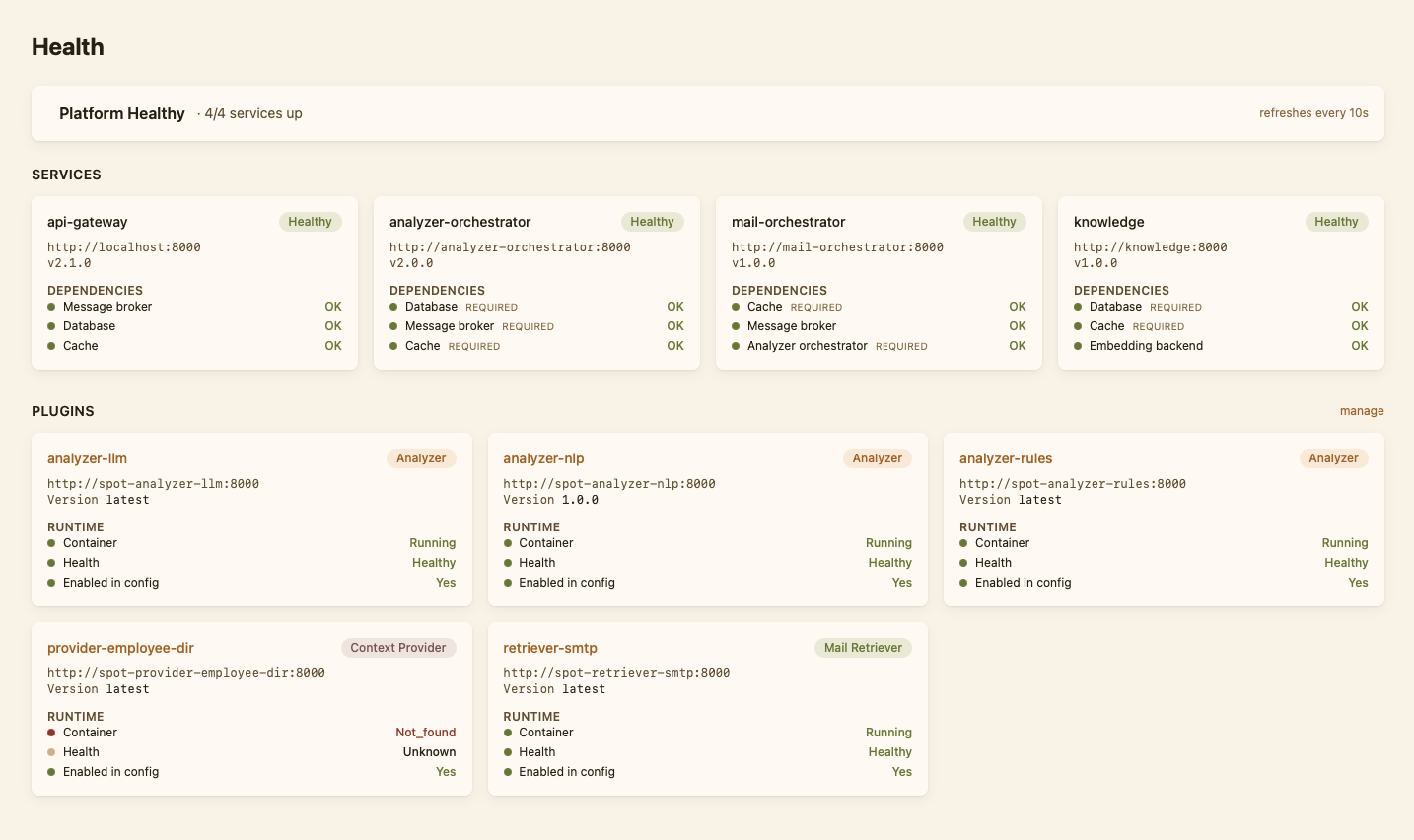
- Health shows whether each workflow can analyse an email now, every SPOT service with its dependencies, and each installed plugin with its container's state and its own health: healthy, starting, unhealthy or unknown, with the reason the plugin gives.
- Queues shows the live state of the message queues SPOT uses internally. Useful for spotting backlogs. An admin replays the messages a queue parked.
- Metrics charts the verdicts across all analyses, and the analyses per day.
- Preferences lets each operator pick a timezone for date display. SPOT stores timestamps in UTC; the dashboard converts them on the fly using the browser's timezone by default, or any IANA zone the operator chooses.
Administration
Admins have four more pages:
- Users creates accounts, changes their role or password, and deactivates them.
- Audit log shows who did what, newest first: sign-ins, plugin actions, user accounts, plugin sources, deletions and replays, filtered by family, actor, outcome and day.
- Configuration edits the platform settings. Its History lists every change of
spot.yaml, with who made it, shows what each did, and rolls the configuration back to one of them, plugins aside. - Updates says when a newer release of SPOT is out, and checks that
docker-compose.ymlis the release's own.
Finding what you need
Three search and filter mechanisms cover most queries:
- The analysis filters (status, verdict, workflow) at the top of the Analysis page.
- The email search at the top of the Emails page, which matches subject, sender, and recipient.
- The knowledge search at the top of the Knowledge page, which takes a free-text query and a tag expression.
Direct links to a specific analysis (/analysis/{id}) or email (/emails/{id}) are stable, so an operator can paste them into a ticket or chat thread and the recipient lands on the same view.