Operator guide
This guide is for the people who use SPOT day to day: triaging flagged messages, running ad-hoc analyses, tuning workflows, keeping an eye on the platform's health. It assumes SPOT is already running and you have an account; the platform-side guides (Getting Started and the Admin guide) live in the Platform section of this site.
For an introduction to what SPOT does and how it works, the Platform → Concepts section explains the underlying ideas (how SPOT works end-to-end, plugins, workflows, the knowledge store). The Dashboard tour sits next to this guide and walks through every page the operator works in.
The rest of this page is the operator's playbook for the recurring situations.
Reviewing a flagged email
When a message gets flagged, the goal is not just to confirm or reject the verdict ; it is to understand why SPOT made the call, so the operator can either trust it or fix the policy. The path through the dashboard is always the same:
- Open the analysis from the Analysis page.
- Read the verdict header: the verdict (malicious, suspicious, spam, benign or unknown), its score from 0 to 100, and what decided it: a decisive signal, the workflow's method, or why the verdict is unknown.
- Scan the analyzers' answers, stage by stage. Each analyzer gives its own verdict, score and confidence, or says why it did not answer.
- Look at the signals. They are the concrete evidence behind the verdict, strongest first ; a domain that looks like a known one, a URL that matches a feed, a tone of urgency that the language model noticed. "Show in email" marks where each one is in the email.
- If something is unclear, open the email itself and read it.
Evidence, where it is in the email, and the email itself are for analysts and admins. A viewer reads the verdict, the score, what decided it, and the names and weights of the signals.
flowchart TB
    Start([Open the analysis<br/>from /analysis])
    Verdict[Read the verdict header<br/>verdict · score<br/>what decided it]
    Breakdown[Scan the analyzers'<br/>answers ; what each<br/>analyzer said and how<br/>confident it was]
    Signals[Inspect the signals —<br/>concrete evidence behind<br/>the verdict, in the email]
    Clear{Verdict<br/>understood?}
    Trust([Trust it or override<br/>via the workflow])
    Email([Open the email itself<br/>and re-read with context])

    Start --> Verdict --> Breakdown --> Signals --> Clear
    Clear -->|yes| Trust
    Clear -->|no| Email
    Email --> Signals
If the verdict is right but too lenient or too strict for the policy, that is a workflow change: open the workflow that produced the verdict and adjust its verdict policy (the method, the thresholds, the decisive signals) or the analyzers' weights. If the verdict is wrong, the next question is which analyzer got it wrong: its answer tells you, and the analyzer's settings page is where you adjust it.
Re-running an analysis
Re-running is the right move when:
- A new analyzer has just been installed and you want it to look at a recent flagged message.
- A workflow has been changed and you want to know what it would have said about a past email.
- An analyzer was unreachable when the email first arrived and you want a clean run now that it is back.
Open the email and click Analyze, or, for an analysis that failed, click Retry or Use another workflow on its page. Pick the workflow you want to use, and submit. SPOT analyses the same stored email again and writes a new analysis. The original is not modified ; both are listed on the email's page, side by side, so the operator can compare them. The workflow's responders are called again: they act again when the job is in enforce, which a re-analysis takes from the mail connection the email came through. An email submitted by hand is always in observe. An email stored before SPOT 2.0 has no view and cannot be analysed again.
Correcting a verdict
When SPOT got an email wrong, tell it, from the Label panel of the email's analysis (analysts and admins). One form does three things, each optional but the class:
- Relabel. Give the email its true class (
malicious,suspicious,spamorbenign; neverunknown) and a note. A label belongs to the email, not to the analysis or the workflow: one per email, and a new one replaces the old. It does not change the verdict of any analysis, which stays as the workflow gave it. The note is stored encrypted and is never written to the audit log, which records the class and the class it replaces. - List the sender. Block or allow the From domain. A listed domain adds the signal
sender_list.blockedorsender_list.allowedto later emails, which changes no verdict until a workflow's policy makes the signal decisive (Sender lists). Allowing counts only when DMARC passes for the domain. The Sender lists page shows both lists and removes a domain. - Promote. Copy the labelled email into a dataset, from the same form. The copy holds the raw message, its view and its label, and is exempt from the retention purge until it is removed from the dataset (Retention). The original keeps its own expiry. A dataset refuses a message it holds already. The email's page lists its copies.
A copy is relabelled on its own page, which its dataset's page links to: its Label panel sets the class and the note, filled with the note the copy has. Relabelling the original does not reach its copies. A copy keeps a label: to take it out, remove it from its dataset with Remove from dataset, on the same page, which deletes it. A copy is never analysed again, and is kept until it is removed.
Labels are read in two places: a dataset carries them as the truth of its emails, and GET /api/v1/labels lists them with each email's sender and a copy's dataset, for analysts and admins.
Searching for related emails
Two patterns cover almost every investigation:
- By sender or recipient. The Emails page filters on the envelope and header fields. Useful for "show me everything from this address in the last week" after spotting one suspicious message.
- By verdict over time. The Analysis page filters on workflow and verdict. Useful for "did anything else trip the strict workflow today?" or "are we suddenly getting more suspicious finance emails?".
The same filters work across the whole history, not just the current page. Bookmark the URL; it preserves the filters and is safe to share with another operator.
Adjusting a workflow
Every workflow change starts with the same question: what is the new policy supposed to do? "Be stricter" is not a policy; "give the LLM analyzer more weight when the email mentions wire transfers" is.
Once the desired change is clear, the dashboard makes it mechanical:
- Open the workflow on the Workflows page, then Edit.
- Change what runs: the analyzers of a stage and their weights, or a new stage that runs only when an earlier stage's score or verdict says so (
triage.score >= 50,triage.verdict == suspicious). An analyzer of weight 0 only observes: only its decisive signals count. - Change how the verdict is reached under Verdict policy: the method, the malicious and suspicious thresholds, the stages whose analyzers decide, and the decisive signals that settle the verdict whatever the scores say.
- Choose what acts on it under Responders: the installed responders each verdict calls. Whether they act is not the workflow's to say: a job enforces only when its mail connection and its route both are in enforce, and observes otherwise, recording what the responders would have done.
- Save. The dashboard checks the workflow first and shows each problem at its field; SPOT checks it again and refuses a workflow it cannot run.
- Test it. The workflow test, open to analysts and admins, runs the saved workflow on a stored email as an analysis does, analyzers fetching its raw message and its parts included, and keeps nothing; it can take as long as the workflow's timeout.
- Measure it. One email proves little. On the Playground, backtest the workflow on the stored mail of the last days, and read the run: where it differs from production, and, over the emails an analyst labelled, its recall and false-positive rate beside production's on the same emails, the Production row of its metrics. A dataset's copies have no production verdict: backtest the current workflow on the same dataset too, and read the two runs' metrics, each on its page, or side by side at
/benchmarks/compare?a=<run id>&b=<run id>(Compare with offers the runs of the same workflow only). Then put it in the shadow (Routing) and read its rate of differences on live mail before it decides anything (Backtesting a workflow).
A safer pattern: duplicate the existing default, edit the copy, test it, measure it, and only promote it to default once the results match expectations. The original default stays available as a rollback.
Installing or updating a plugin
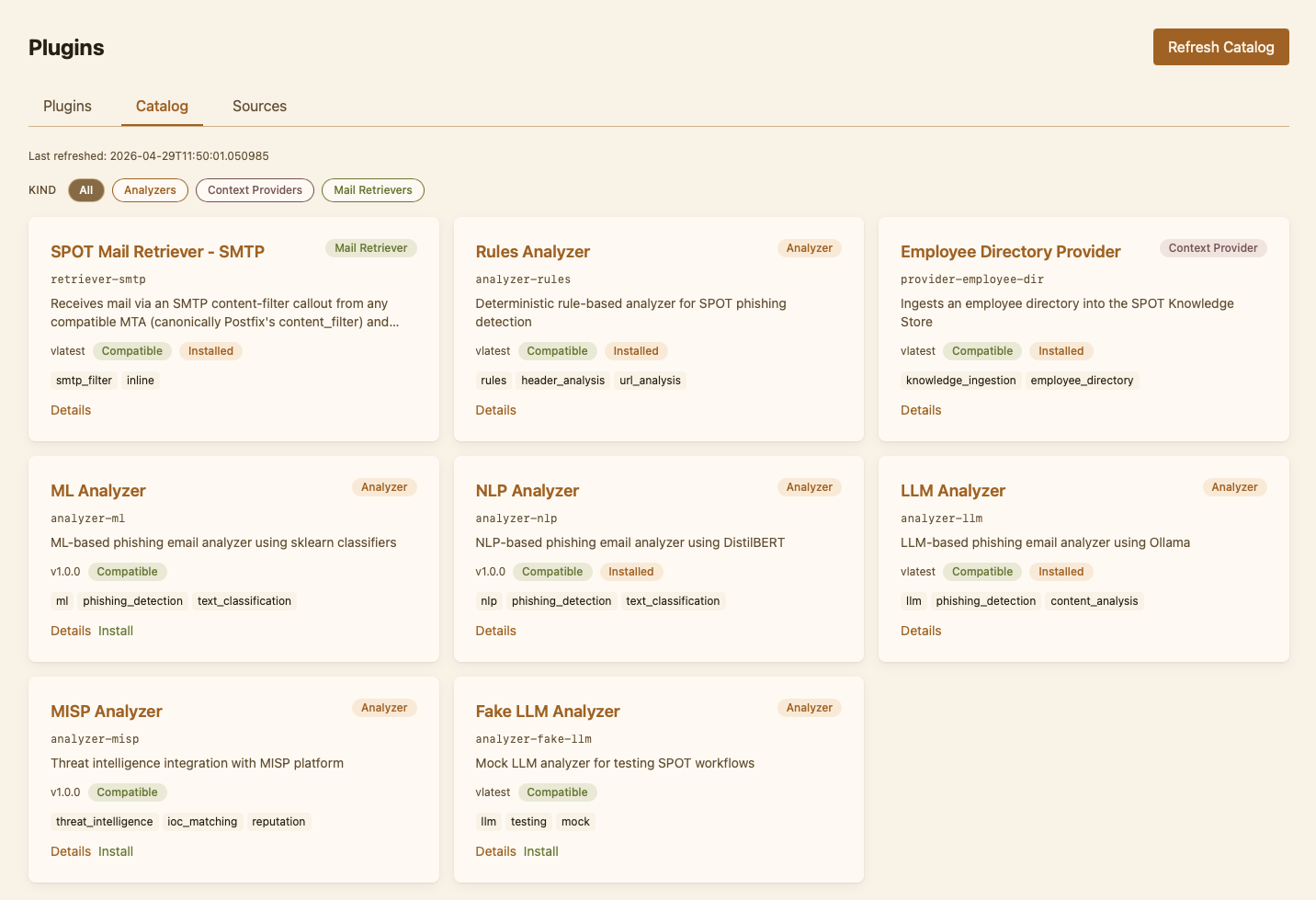
The Plugins page has two views: the Installed tab shows what is currently running in this deployment, and the Catalog tab shows what is available from the configured sources.
Each catalog entry shows its kind (analyzer, context provider, mail retriever or responder; a plugin has one), its contract, and its egress class: what it sends outside SPOT. None sends nothing, indicators sends indicators such as URLs and hashes, and content may send the email's content. An entry SPOT refuses, such as a plugin of contract 1, says why and cannot be installed.
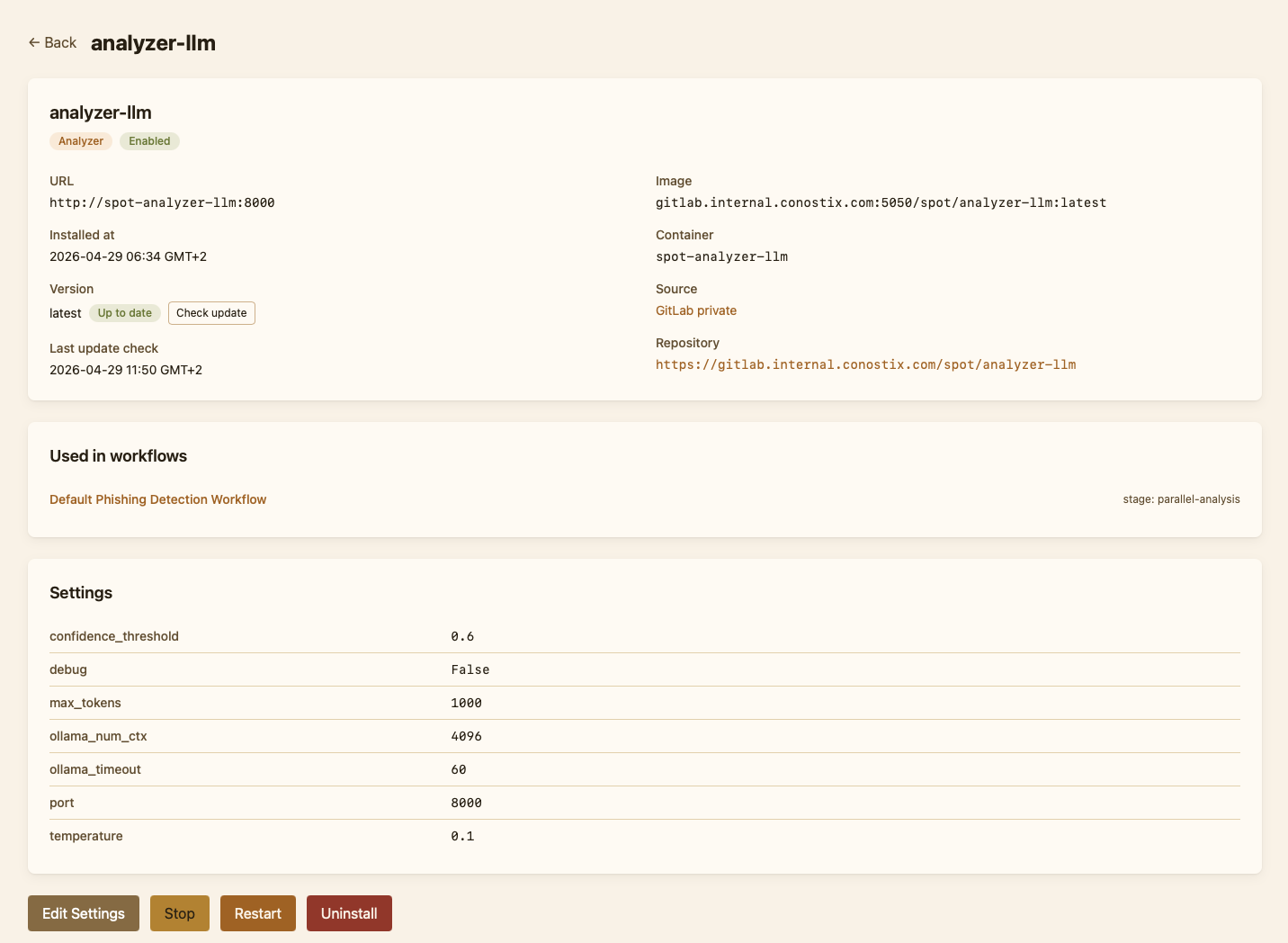
To install a plugin, find it in the catalog, open its detail page, fill in its settings and click Install. A plugin of egress class content needs your consent first: check the box that says it receives the email's content and may send it out of SPOT. SPOT pulls the container, registers the plugin in its configuration and starts it. The plugin shows up under Installed with a status chip; the operator can edit settings, restart, or uninstall from there.
Saving a plugin's settings restarts it so that it takes them: it is unavailable for a few seconds. Each setting has the control its type asks for; a certificate or a key is a text box that keeps its line breaks. A stored secret is never shown: leave it empty to keep it.
Updates work the same way. From the Catalog or the plugin's Installed detail page, click Check update to ask SPOT to re-scan the source for a newer version. If one is available, an "Update available" chip appears next to the version, and the operator can apply it from the same page. An update to a version of egress class content asks for the same consent, unless it was given before.
Inspecting the knowledge store
When an analyzer's verdict depends on organisational context, the knowledge store is the place to verify what it saw. Open Knowledge in the dashboard. The most useful operations are:
- Filter by source. Narrow the view to one provider so you can confirm its sync delivered what you expected.
- Filter by tag expression.
executive+financeshows you the documents that an analyzer would consult for a finance-themed message about an executive. - Run a semantic query. Paste the text from a flagged message into the query box and see what the analyzer would see.
If the documents look wrong, the issue is upstream: open the provider's detail page, check the last sync time, look at any errors, and trigger a manual sync if needed. If the documents look right but the analyzer still got it wrong, the issue is in the analyzer ; open its settings, or open the analysis to see what queries the analyzer actually ran.
When something is broken
Two pages catch most operational issues before they become emergencies:
- Health. Each SPOT service appears with a status. A red row is the first thing to investigate; expanding it reveals the last error and the time it happened.
- Queues. Backlogs show up here before they show up anywhere else. A queue with a steadily-growing depth means something downstream is slow or stuck.
If the queues are clean and Health is green but analyses still feel wrong, the issue is more likely in a workflow or a plugin's settings than in the platform itself.
Day-zero checklist
A short routine for someone who is new to SPOT and wants to know that things are working:
- Open Health. Every row should be green. Note the last-ingestion timestamp.
- Open Analysis. Recent rows should be present, and a mix of verdicts should look plausible.
- Open Plugins. The Installed list should match what the admin guide expected for this deployment; every container should be running, and every plugin's own health should be healthy.
- Open Knowledge. The total count should be non-zero, and filtering by each source should return documents.
- Submit one known-bad email through the Submit form and confirm SPOT classifies it as expected.
If all five pass, the platform is operational and the operator can start working from the Analysis page.